What is Embed and share forms?
After you publish a form, Formit gives you a public link and embed options so the same live form can live on websites, product surfaces, and campaigns. Choose an embed mode that fits the page, and pass hidden fields or URL parameters when you need attribution.
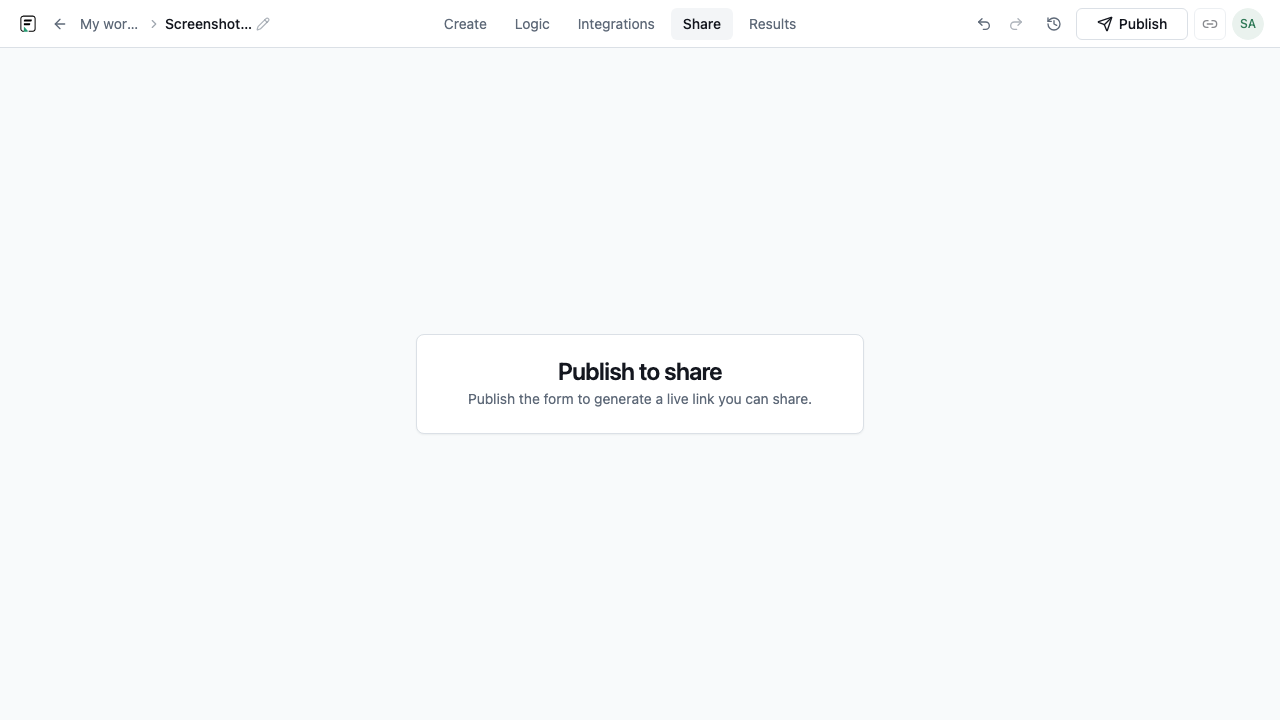
How it works
- Publish the form so a live version exists.
- Open Share or Embed for that form and copy the public link if you only need a URL.
- Pick an embed mode: standard, full-page, popup, slider, popover, or side-tab.
- Paste the embed snippet into your site or app and smoke-test the experience.
- Optionally append URL parameters or configure hidden fields for campaign attribution.
- For email, use the email embed option - note free orgs may show Formit branding on that surface.
Key capabilities
Public links
Share a stable public URL for the published form without embedding code.
Six embed modes
Standard, full-page, popup, slider, popover, and side-tab cover inline and overlay placements.
Hidden fields and URL params
Pass attribution or context into the submission without showing those values to respondents.
Email embed
Embed forms in email experiences; free organizations may display Formit branding on email embeds.
Benefits
- Meet respondents where they already are - site, app, popup, or side-tab - without rebuilding the form.
- Keep one published form as the source of truth across channels.
- Capture campaign context with URL params and hidden fields.
- Choose the interaction pattern that matches the page density and conversion goal.
Use cases
- Inline lead forms on marketing landing pages (standard embed).
- Exit-intent or CTA-triggered demos using popup, popover, or side-tab.
- Campaign pages that pass UTM or partner IDs through URL parameters.
Example workflow
A marketing team publishes a demo request form, embeds it as a popup on the pricing page, and appends UTM parameters to the shared URL for ads. Completions land in Results with the attribution values stored via hidden or URL fields, while the same form also runs as a standard embed on the blog.
Tips and best practices
- Always publish before copying embed code so respondents hit a live version.
- Match the mode to the page: use full-page for dedicated routes, standard for content sections, and overlays for CTAs.
- Use hidden fields or URL params for source tracking instead of asking respondents to retype campaign details.
Limitations and plan notes
- Embeds require a published form; drafts are not publicly fillable.
- Email embeds on free organizations may include Formit branding.
- Host page styling and CSP settings can affect how the embed renders - test on the real site.
Frequently asked questions
- How many embed modes does Formit support?
- Six: standard, full-page, popup, slider, popover, and side-tab.
- Can I pass campaign data without showing it on the form?
- Yes. Use hidden fields and URL parameters so attribution values are submitted with the response.
- Will email embeds show Formit branding?
- On free organizations, email embeds may show Formit branding. Paid orgs can remove branding where the plan allows.
Try it in FormitAI
Open the builder, configure this in a real form, publish a version, and share a link or embed. Start free - paid features stay honest about plan gates in the product.
Open FormitAI