What is Contact Info field?
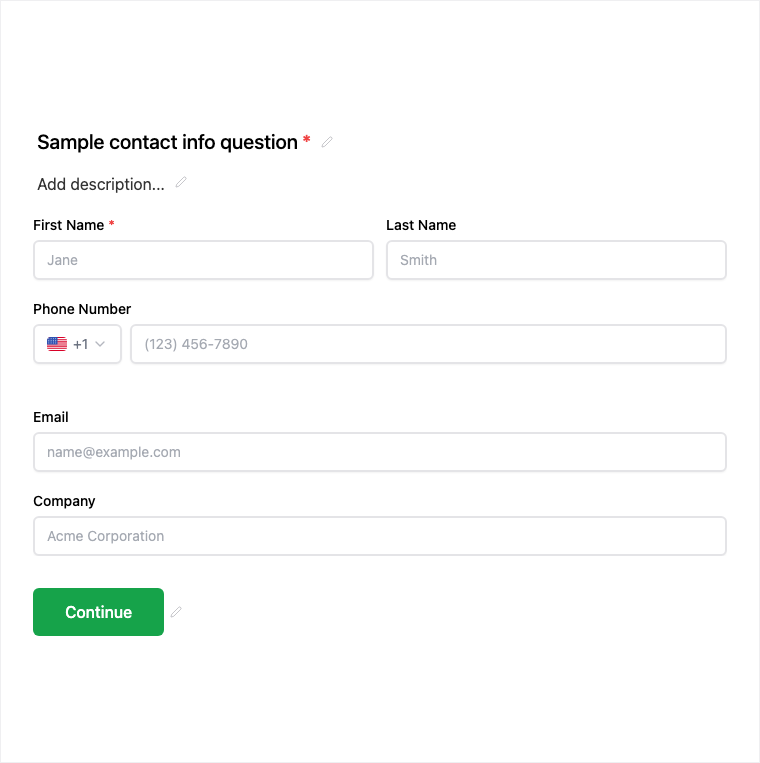
The Contact Info field gathers name, email, phone, and company in a single structured block instead of scattering those questions across the form. In the Formit builder it appears under Add Block as Contact Info; you enable the sub-fields you need in the properties panel. When email is present, answers can map into Contacts for CRM-style follow-up.
How it works
- Open the form builder and choose Add Block → Contact Info.
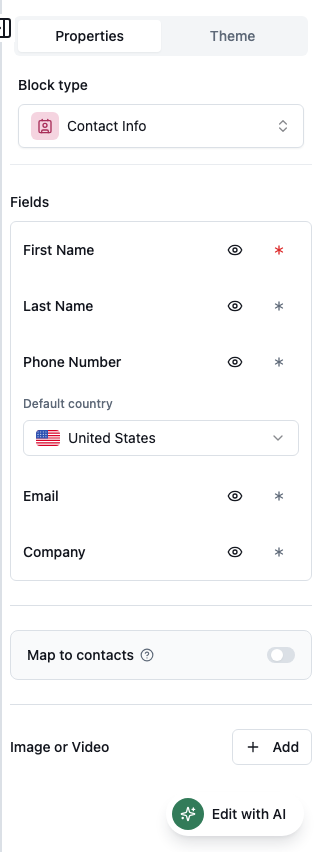
- In the properties panel, enable the sub-fields you need (name, email, phone, company) and set required flags per sub-field.
- Preview the live form to confirm layout and which lines respondents must complete.
- Publish a version so the structured contact block is live on your link or embed.
Benefits
- One block covers the core identity fields most lead and application forms need.
- Per-sub-field required flags keep optional lines optional without extra blocks.
- Works with Contacts mapping when email is collected.
Use cases
- Lead capture and demo request forms that should create a Contact record.
- Job or program applications that need name plus email and phone.
- Event registration where company and contact details matter for follow-up.
Properties panel
Block-specific settings for Contact Info in the builder properties panel.
Respondent view
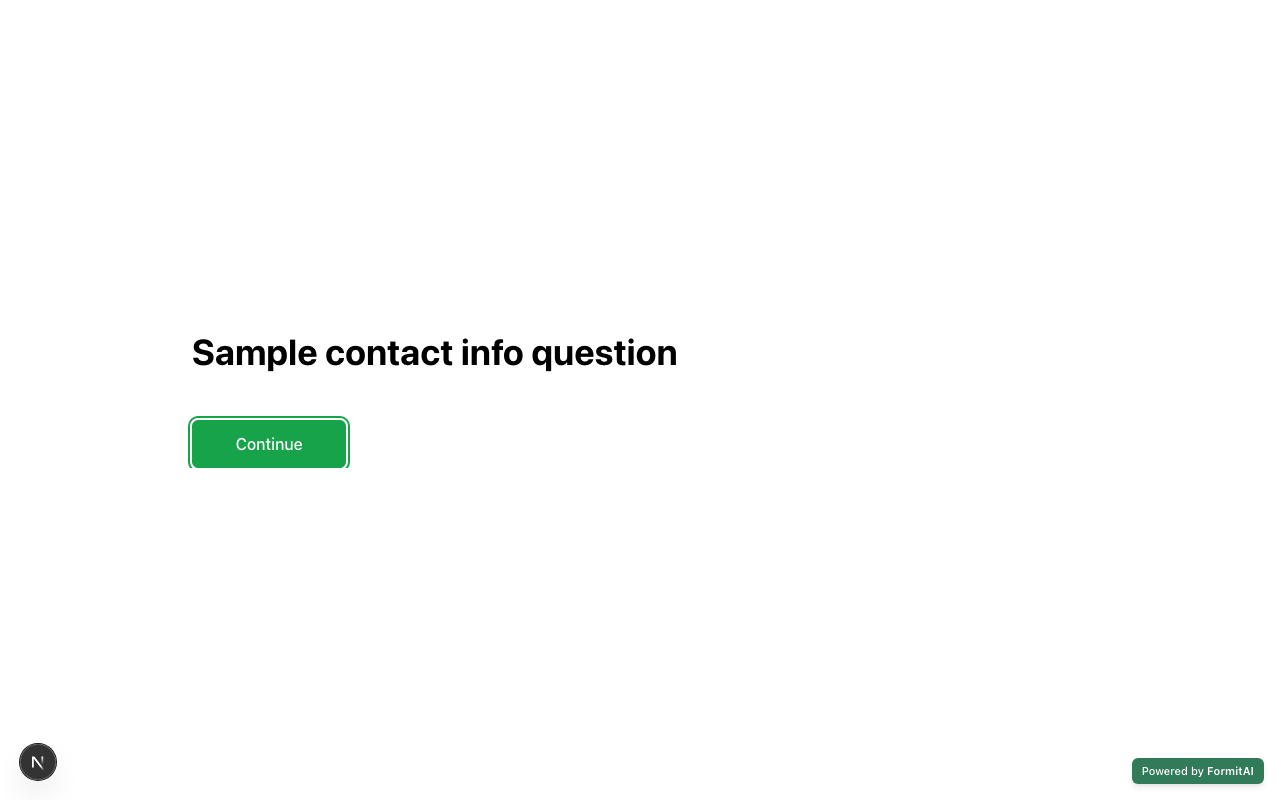
How the Contact Info field appears when someone fills out your published form.
Tips and best practices
- Enable only the sub-fields you will use - extra empty lines add friction.
- Mark email required if you plan to sync to Contacts or send follow-up.
- Pair with a Legal block when you need explicit consent before submit.
Frequently asked questions
- Which sub-fields can Contact Info collect?
- You can enable name, email, phone, and company as sub-fields, each with its own required flag in the properties panel.
- Does Contact Info work with Contacts mapping?
- Yes. When email is present, the block works with Contacts mapping so submissions can sync into your CRM list.
- Where do I add Contact Info in the builder?
- Use Add Block → Contact Info, then configure sub-fields in the properties panel before you preview and publish.
Try it in FormitAI
Open the builder, configure this in a real form, publish a version, and share a link or embed. Start free - paid features stay honest about plan gates in the product.
Open FormitAI