What is Schedule / booking field?
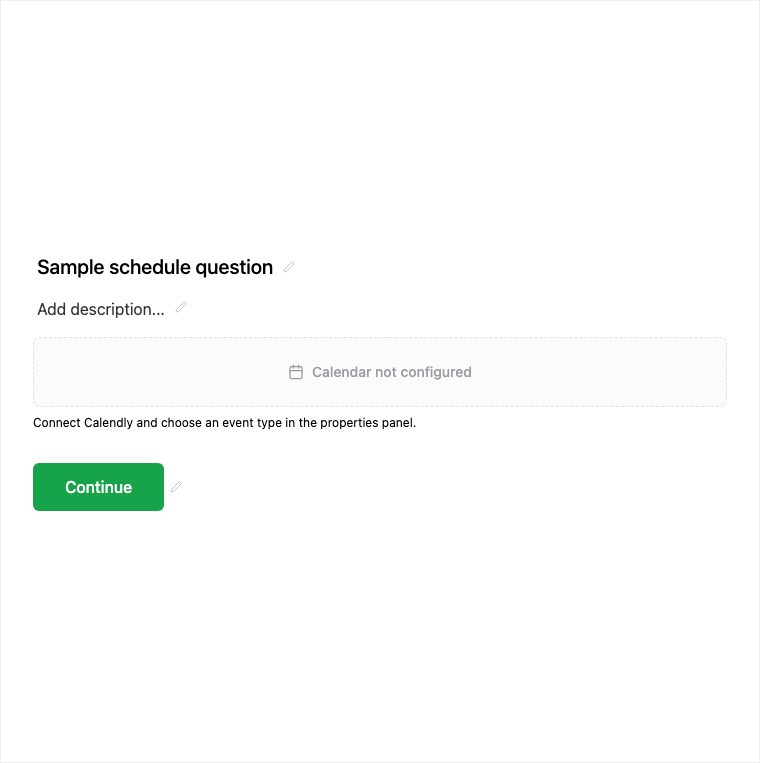
Schedule books a time on your calendar from inside the form via Calendly. Add it from Add Block → Schedule in the Formit builder, connect Calendly in workspace integrations, and select an event type. Booking details land on the submission so demos and interviews stay in-flow.
How it works
- Connect Calendly in workspace integrations if it is not already linked.
- Add Block → Schedule and select the Calendly event type in properties.
- Preview the booking experience inside the form.
- Publish so respondents can book without leaving the form.
Benefits
- Calendly event types keep scheduling on your real calendar.
- Booking details attach to the submission.
- Keeps demos, interviews, and onboarding calls in-flow.
Use cases
- Sales demo booking inside a lead form.
- Interview or screening scheduling.
- Onboarding call booking without a separate scheduling page.
Properties panel
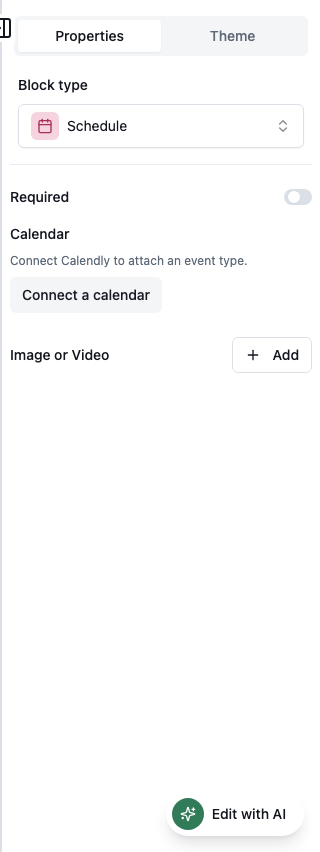
Block-specific settings for Schedule in the builder properties panel.
Respondent view
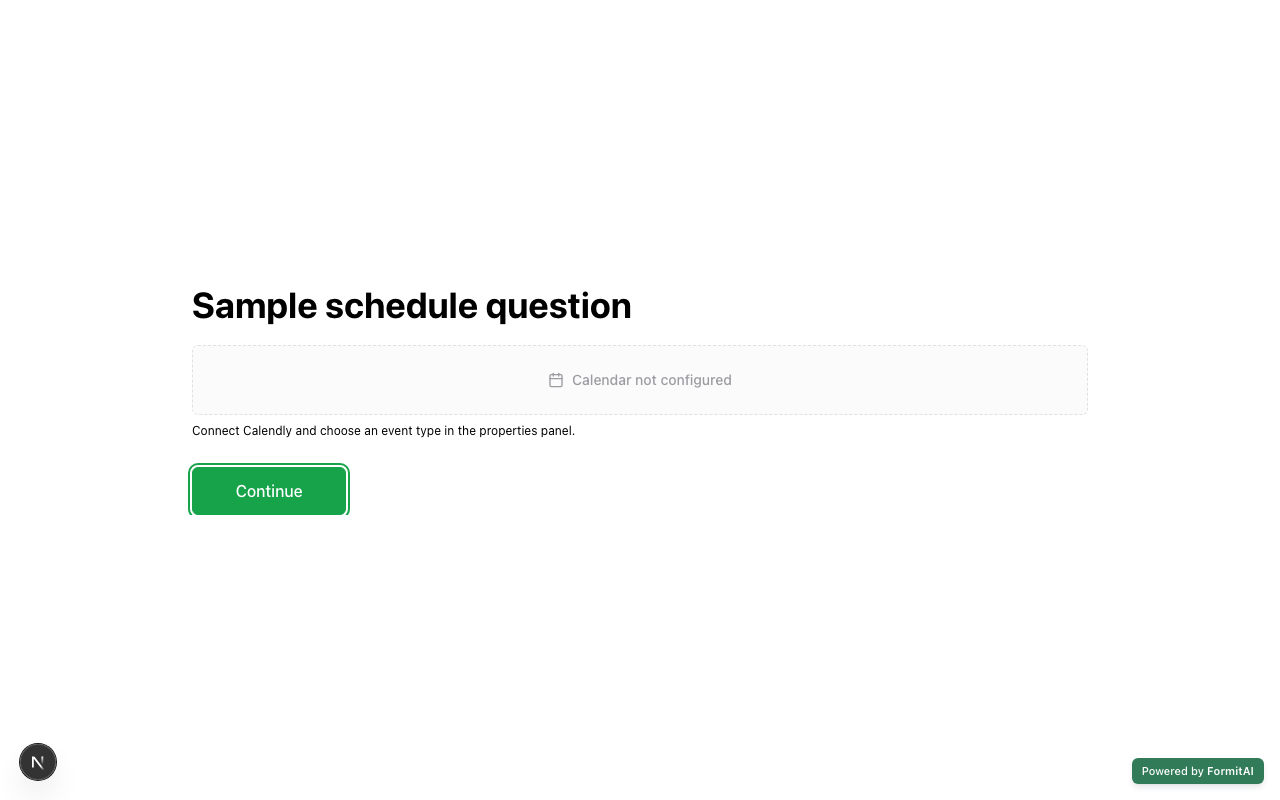
How the Schedule field appears when someone fills out your published form.
Tips and best practices
- Connect Calendly before configuring the block so event types appear.
- Use Date when you only need a preferred day without booking a slot.
- See Booking & schedule form type docs for end-to-end patterns.
Frequently asked questions
- What calendar provider does Schedule use?
- Schedule is Calendly-connected. Connect Calendly in workspace integrations and select an event type.
- Where do booking details appear?
- Booking details are stored on the submission so your team can follow up from Results.
- How is Schedule different from Date?
- Date collects a single day; Schedule books a Calendly time slot inside the form.
Try it in FormitAI
Open the builder, configure this in a real form, publish a version, and share a link or embed. Start free - paid features stay honest about plan gates in the product.
Open FormitAI